


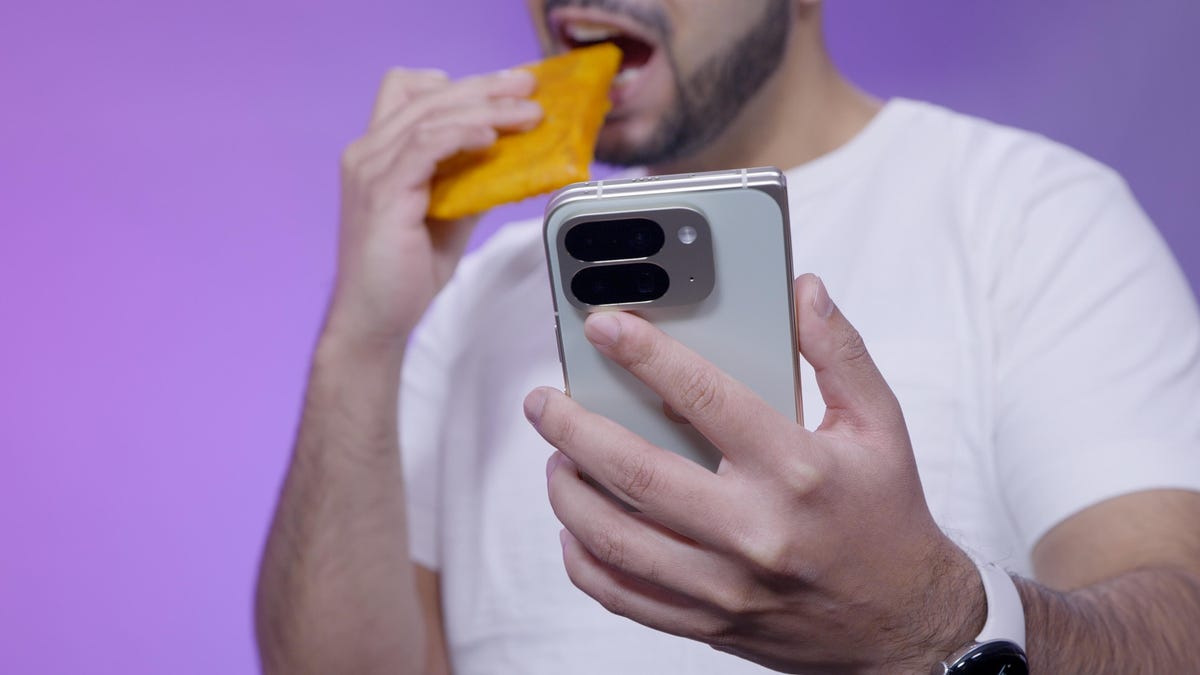
When zigzagging around people in New York, I can’t be staring down at my phone to text. Speech-to-text tools have become crucial for quick communication while double-fisting a smartphone and a Jamaican beef patty.
The problem is that sometimes the system interprets words incorrectly, misses punctuation or stops recording altogether. This makes me stop in the middle of pedestrian traffic, where I need to go back and begin editing, eliminating whatever conveniences speech-to-text afforded me. Frankly, this should be fixable with AI, the technology that’s upending how we shop, browse the web and read about the passing of our loved ones, for better or for worse.
There’s been some progress. Google introduced advanced voice typing earlier this year for owners of the Pixel 6 and newer devices. Once enabled, you can actually edit texts with your voice, and the onboard AI will be able to go back and correct misspoken words. For example, saying “delete last word” removes the last word and saying “clear” erases the last sentence. For Pixel 8 owners and above, saying “fix it” brings up suggestions to improve your texts, with simple taps cleaning up your messages. Those with newer Pixel handsets can also tell their device via voice to rearrange or replace words. Pixel owners can even teach the AI to change the spelling of names, like changing Christine to Christyne. Pixel 9 and 10 owners (excluding the Pixel 9A, which is odd because both have the same processor and RAM) can use the AI to proofread, rephrase or formalize messages.
Learning all the new features can take a bit. But once ingrained, the process of using voice-to-text is less cumbersome. But it doesn’t work perfectly, and there’s room for improvement.
While Pixel devices don’t have cutting-edge processors or the highest megapixel cameras, Google differentiates itself from competitors like Samsung and Motorola with its strong software support, which is only further buoyed by AI. Interestingly, Pixel sales are growing rapidly, yet the company doesn’t necessarily want to dominate the near $600-billion smartphone market. Google admitted as much in an interview with Bloomberg earlier this year. Instead, Google’s core business strategy now centers around AI. Whether it’s Apple or Samsung, both will (reportedly) be using Google Gemini.
Despite Pixel phones being underpowered and considering Google’s might in the AI race, it needs to figure out how to make AI-powered voice-to-text work in order to show the possibilities of its technology, which Google isn’t quite there yet. That means it’s up to Google to show to the rest of the industry that its AI solutions on mobile are the best, and its Pixel phones showcase that development. Here’s how it can work for you.
When advanced voice typing works, it’s awesome
Seeing Google’s AI replace or change words with your voice is cool. Seeing it type out the command I gave it instead of doing the command isn’t as much.
That’s what makes advanced voice typing feel like a crapshoot. When it works, it’s great. But the number of times where the AI struggles to differentiate between words intended for messaging and those that need fixing is plentiful.
This randomness is bizarre because Google’s Gemini app on my Pixel 10 Pro Fold review unit seems to understand me just fine. According to Google, the discrepancy is because the phone is doing on-device transcription, which means it’s running a smaller local AI model. Obviously, a small AI model on a phone can’t compete with a multibillion-dollar data center used for cloud-based models. Google says it’s frequently releasing improvements.
Missing punctuation marks is a real hassle
I struggled with punctuation on older voice-to-text systems, having to say out loud the words “comma,” “exclamation mark,” and “period.” With advanced voice typing, it’s automatic. But even this feature can be spotty.
When it works, it’s a major convenience, as I don’t need to go back to the text message and add punctuation. When it doesn’t work, however, it creates one long difficult-to-read, run-on sentence that is frustrating to follow and makes me look careless.
This could be a game changer if Google gets it right
Consumers have been nonplussed by the wave of AI features permeating their phones. Sure, quick photo edits or email rewrites are handy, but often these features feel additive rather than transformative.
I feel that often, when consumers think of AI, they think of TARS from the 2014 film Interstellar or HAL 9000 in 1968’s 2001: A Space Odyssey. Often, the AI systems we interact with on our phones are just more advanced ways of doing what our devices have already been doing by other means.
For Google to get advanced voice typing right, the models need to be able to discern intent from dictation seamlessly. There can’t be this constant juggling where it works half the time. For most, it’ll just be a nuisance. For me, it’ll end with a culinary fumble and rat-intercepted beef patty.
How to enable advanced voice typing on Pixel
- Go to the Messages app.
- Click on any contact as if you’re about to start texting.
- Tap on the icon that looks like four squares in the left corner of the keyboard.
- Tap Settings.
- Tap on Voice Typing.
- Turn Advance voice typing features on.
Voice commands (Pixel 6 and above)
- To delete the last word, say: “Delete last word.”
- To delete the last sentence, say: “Clear.”
- To clear the text, say: “Clear all.”
- To send a message, say: “Send.”
- To fill out the next open field in a form, say: “Next.”
- To add an emoji, say the name of the emoji, like “Smiley emoji.”
- To stop voice typing, say: “Stop.”
How to use “fix it” (Pixel 8 and above, English, US only)
- After you dictate a text, say: “Fix it.”
- A pop-up should appear, giving you suggestions.
- This feature might not work for everyone.
Use AI for detailed edits, proofreading and rewriting (Pixel 8 and above, US only)
- Say one of the commands below.
- It should be automatic, but you might see an Apply button.
- After edits, you can also say, “Undo” to revert the command.
- Delete the entire message by saying, “Clear all.”
- The feature is experimental and might not always work.
Commands:
Advanced voice typing commands for Google Pixel devices.
Read the full article here