



Election day is a few days away, and that means political campaigns are mounting one last push to advocate for their candidate and issue. So you might be getting more election-related phone calls than usual. While those calls are well-meaning, they can be annoying if you’ve already voted early or have made up your mind about who to vote for. Luckily, if you keep your iPhone updated to the most recent iOS version, you can enable call screening on your device.
Apple introduced call screening in iOS 26. It isn’t an Apple Intelligence feature, so any iOS 27-compatible iPhone, such as the iPhone 14 Pro, can use it. I enabled the feature over a year ago and my iPhone has diligently held back spam calls, like the Hoover Dam, ever since. But you have to enable it first.
Here’s how to enable call screening in a few easy steps and what to know about the new feature.
How to turn call screening on your iPhone
1. Tap Settings.
2. Tap Apps near the bottom of the menu.
3. Tap Phone.
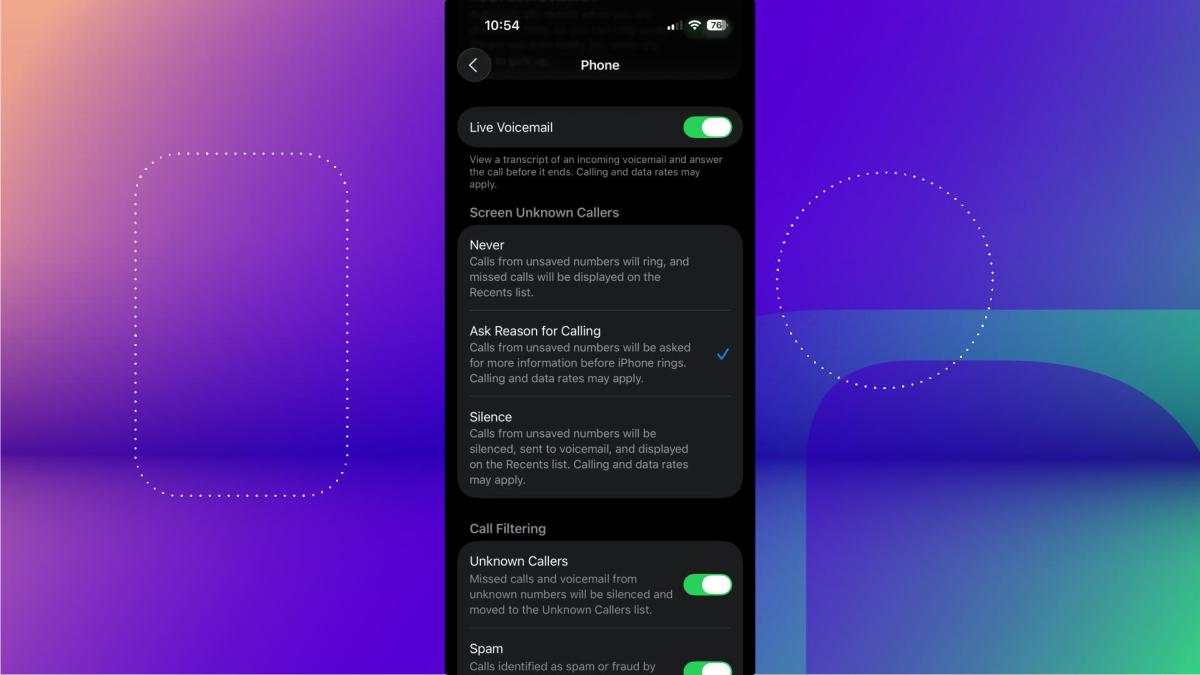
Under the section Screen Unknown Callers, you’ll see three options: Never, Ask Reason for Calling and Silence. Here’s what you should know about each of these options and which one is right for most people.
Which call screening option should you choose?
Choosing Never is the default option and lets calls from unsaved numbers come through and ring on your phone. It also documents missed calls in your Recents list in your Phone app, just like before call screening was available.
If you tap Ask Reason for Calling, your iPhone will ask anyone who calls you from an unsaved number why they are calling you without ringing your iPhone. After the caller answers a few questions, your iPhone will notify you with a transcript of the caller’s answers. Then you can decide whether you want to answer the call.
You can also pick Silence, which is the nuclear option for phone calls. Any unsaved numbers that call you will be silenced and sent to voicemail, no questions asked.
Ask Reason for Calling is the best option for most people who want to screen calls. I chose it, and while it notified me when scam callers answered some questions, which they rarely did, it also notified me when my doctor’s office called to go over some test results. If I had chosen Silence, I would have missed my doctor’s office (and choosing Never would mean checking every call if I was expecting something important).
If you choose Ask Reason for Calling and dislike it, you can always follow the steps above again and choose one of the other options. And remember, you can always silence your iPhone and not be bothered by any phone calls at all. My wife has not taken her phone off silent in months, and she remains blissfully unbothered by spam calls.
For more iOS news, here’s what to know about iOS 27.2 and iOS 27.1 as well as our iOS 27 cheat sheet for other tips and tricks.

See full bio
Read the full article here